What Is an IPTV Box? The Complete Guide to Streaming Boxes & Devices (2026)
Table of Contents
Search “what is an IPTV box” and you’ll find two very different stories. On one side, ads for “fully loaded” boxes promising thousands of channels for a one-time payment. On the other, small streaming devices like the Fire TV Stick and NVIDIA Shield TV. This guide answers the real question plainly: what is IPTV box hardware, how does it work, and which device should you actually buy for IPTV?
The short version: an IPTV box is a small streaming device that connects to your TV and the internet so you can watch television delivered over the internet (that’s what IPTV means — our guide to what IPTV is and how it works covers the technology in full). The box itself contains no channels. It’s the hardware; your subscription and player app are what deliver the content.
In this guide, you’ll learn exactly what an IPTV box is, how it works, how boxes compare to streaming sticks and Smart TVs, which device is best for IPTV use cases, why you should avoid preloaded “fully loaded” boxes, whether you even need one, and how to set one up.
What Is an IPTV Box, Exactly?
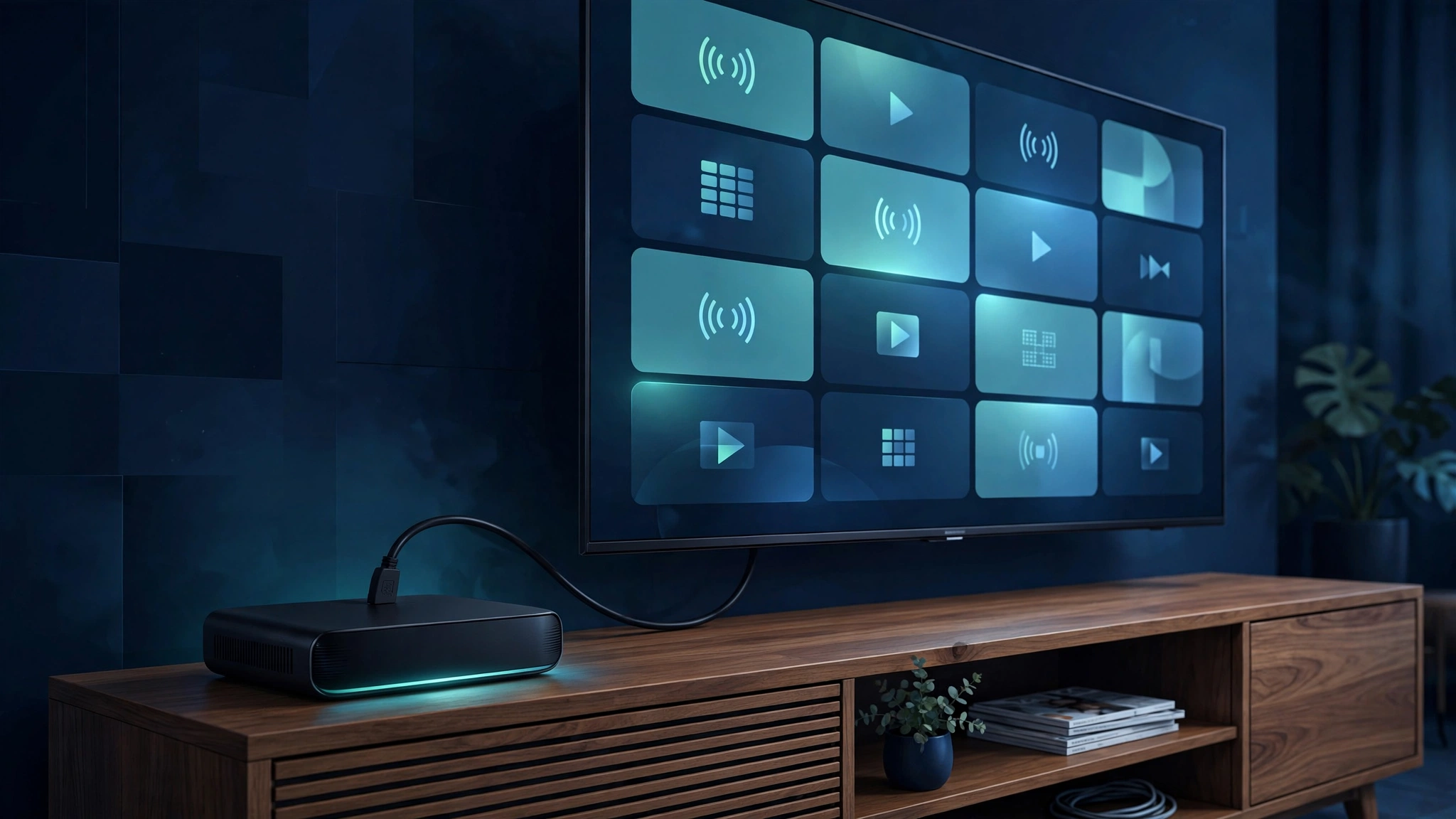
An IPTV box is a small set-top streaming device that plugs into your TV (usually via HDMI) and connects to your home internet to play TV streams delivered over the internet. It runs apps called IPTV players, which log in to a subscription service or playlist you already pay for. The box itself carries no channels — it is the hardware that makes IPTV watchable on a television.
Think of it as a bridge. Your television shows pictures; your internet carries data. The IPTV box sits between them, running the software that receives, decodes, and displays live TV, sports, and on-demand video on the big screen. Under the hood, it’s essentially a compact, low-power computer built for one job: streaming.
Crucially, an IPTV box is not a satellite receiver or a cable box. It doesn’t pick up broadcasts from a dish, and it isn’t tied to a cable company. It works entirely over your internet connection, which is why it can serve up channel guides, catch-up TV, and video-on-demand alongside live channels.
You’ll also hear these devices called streaming boxes, set-top boxes, Android TV boxes, or media players. The names overlap because the hardware is largely the same — what changes is the operating system (Android TV, Fire OS, Google TV, or tvOS) and which apps it can run.
How Does an IPTV Box Work?
You connect the box to your TV with an HDMI cable and to your home internet over Wi-Fi or Ethernet. You install an IPTV player app from the device’s app store, sign in with login details from your licensed IPTV subscription (usually an M3U playlist link or Xtream Codes credentials), and the app pulls your channel list, TV guide, and streams from your provider’s servers and plays them on your TV.
The chain looks like this:
- Your internet connection carries the data. Live IPTV typically needs a stable 10–25 Mbps for HD or 4K streams.
- The box receives and decodes the video signal, turning compressed data back into a picture and sound your TV can display.
- The IPTV player app is the software interface — the channel list, electronic program guide (EPG), favorites, and playback controls. We explain what an IPTV player is and how it differs from a service in a separate guide.
- Your subscription is where the content rights live. The player is empty until you add credentials from a provider you pay for.
When you press a channel on the remote, the app requests that stream from the provider’s server, the box buffers a few seconds of video, and playback begins. Changing channels means requesting a new stream — which is why channel switching on IPTV can feel slightly slower than flipping channels on cable.
One practical point: for live TV, a wired Ethernet connection is noticeably more reliable than Wi-Fi. Live streams are unforgiving of interference and congestion, so if your box has an Ethernet port and sits near your router, use a cable.
IPTV Box vs Streaming Stick vs Smart TV: What’s the Difference?
They’re different shapes of the same idea. A box is a slightly larger device that sits on your TV stand; a streaming stick is a slim dongle that plugs directly into an HDMI port and hides behind the TV; a Smart TV runs similar streaming apps natively without any extra hardware. All three can run IPTV player apps — the choice comes down to your TV’s hardware, the ports you need, and performance.
| IPTV / streaming box | Streaming stick | Smart TV (built-in apps) | |
|---|---|---|---|
| Form factor | Small unit on the TV stand | Dongle hidden behind the TV | Nothing extra needed |
| Performance | Usually the fastest; more processing headroom | Good; can throttle under heavy loads | Varies widely; budget TVs often sluggish |
| Ports | Often includes Ethernet, USB, sometimes storage expansion | HDMI only; no Ethernet or USB | Depends on the TV |
| Remote | Dedicated remote included | Compact remote included | The TV’s own remote |
| App availability | Full app store of the platform | Same app store, sometimes trimmed | Limited to the TV brand’s app store |
| Portability | Easy to move between TVs | Easiest to take traveling | Fixed to one TV |
| Best for | Home theater, power users | Budget setups, travel, older TVs | Newer TVs with good built-in apps |
The honest takeaway: the distinction matters less than the software platform. A Fire TV Stick and an NVIDIA Shield TV both run IPTV player apps beautifully — one is a stick, the other a box, and both qualify as “IPTV boxes” in common usage. What matters is whether the device runs the player app you want, and whether it’s fast enough to do it smoothly.
Which IPTV Box Is Best for IPTV?
For most people, a Fire TV Stick 4K Max or a Chromecast with Google TV is more than enough — they’re affordable, widely available, and run the popular IPTV player apps. Power users and home-theater setups get more from the NVIDIA Shield TV’s extra performance and ports, while Apple households may prefer the Apple TV 4K for its ecosystem integration. Any of them works for IPTV; pick the one that matches your TV, budget, and the apps you use.
Here’s how the main options compare for IPTV use.
Fire TV Stick 4K Max
Amazon’s Fire OS stick is the most common device people use for IPTV, and for good reason: it’s inexpensive, the interface is simple, and installing IPTV player apps is straightforward. Amazon’s app store carries the well-known IPTV players, and the platform supports sideloading apps that aren’t in the store — which is why our Firestick IPTV setup guide is one of the most-read articles on this site.
Best for: beginners and most households — the default safe choice. If you’re unsure, start here.
NVIDIA Shield TV
The Shield TV is the enthusiast favorite. It’s a full Android TV box with notably strong performance, AI-powered upscaling that sharpens HD content on 4K TVs, and support for Dolby Vision and Dolby Atmos for home-theater setups. It also has USB ports for expandable storage and can even run a Plex media server. NVIDIA’s own product page details these features if you want the full spec sheet: NVIDIA Shield TV.
Best for: power users, home-theater setups, and anyone who also games or runs a home media server.
Apple TV 4K
Apple’s tvOS box is polished, fast, and integrates deeply with iPhones, iPads, and the Apple ecosystem — AirPlay, shared photos, and smart-home controls all work seamlessly. Apple’s official page covers the current model: Apple TV 4K. One caveat for IPTV users: app availability is more limited than on Android-based platforms, and sideloading isn’t an option, so confirm your preferred IPTV player is available in the tvOS App Store before buying.
Best for: households already invested in Apple devices who want one remote for everything.
Chromecast with Google TV
Google’s dongle runs the Google TV interface on top of Android TV, so it supports the same broad range of IPTV player apps as other Android-based devices. It has a clean interface, a good voice remote, and Chromecast built in for casting from a phone. It’s typically the most affordable of the mainstream options.
Best for: Google-ecosystem households and budget-conscious buyers who want full app compatibility.
Generic Android TV Boxes
You’ll also see dozens of no-name Android boxes sold online, often marketed specifically as “IPTV boxes.” Be selective: many are underpowered, ship with outdated software, and never receive security updates. If you go this route, buy from a reputable manufacturer with a track record of software updates — and never buy one that arrives “fully loaded” with channels preinstalled, which brings us to the most important warning in this guide.
Avoid “Fully Loaded” Boxes: Why Preloaded Devices Are a Bad Deal
Some sellers market boxes that arrive “fully loaded” — preinstalled with apps or add-ons promising thousands of premium channels and movies for a one-time payment, with no subscription required. This is a bad deal, and here’s why, in general terms:
- The content is almost never licensed. Legitimate content costs money to license. A box offering everything for a flat one-time fee isn’t paying for those rights — which means the streams can disappear overnight when sources get shut down, leaving you with an expensive paperweight.
- Preloaded software is a security risk. Boxes that ship with unofficial apps installed outside any app store are a classic vector for malware, adware, and data harvesting. You’re giving a device full access to your home network.
- No updates, no support. These sellers vanish. When the preloaded services stop working — and they do — there’s nobody to fix them and no refund coming.
- The hardware is often junk. The margins on these boxes come from cheap, underpowered components that stutter on HD streams and die early.
Here’s the legal framing, kept simple: the box itself is just hardware, and owning a streaming box is perfectly legal. What matters is the content you access through it. Using a licensed subscription with a legitimate player app is fine; using preloaded apps that stream unlicensed content is where people run into trouble. Our guide on spotting legal vs illegal IPTV services explains the consumer-protection side in detail.
The rule of thumb: buy a clean, reputable device from a known brand, install player apps from the official app store yourself, and pay for a licensed subscription. Anything that promises all the content in the world for a one-time fee is selling you someone else’s problem.
Do You Actually Need an IPTV Box?
Not always. If your Smart TV already runs your preferred IPTV player app smoothly, with a responsive interface and a working TV guide, you may not need any extra hardware. Buy a box or streaming stick if your TV’s apps are slow or missing, you want a faster and more consistent interface, you need apps your TV’s app store doesn’t offer, or you want a portable setup you can move between rooms or take traveling.
A quick decision checklist:
You probably don’t need one if:
- Your TV is recent and its built-in apps include the IPTV player you want
- The interface feels fast and the guide loads without lag
- You’re a casual viewer who mainly watches a few channels
You probably do need one if:
- Your TV is a few years old and its apps are sluggish or unsupported
- Your preferred player app isn’t available in your TV’s app store
- You want Ethernet for stable live streams and your TV is Wi-Fi only
- You travel and want your setup to follow you — a stick in a bag beats a TV’s built-in apps every time
Note that our getting-started guide walks through choosing your first setup in more detail, including what to check on your current TV before spending money.
How to Set Up an IPTV Box
Setting up a typical IPTV box takes about 15 minutes. The exact menus vary by device, but the steps are the same everywhere:
- Connect the hardware. Plug the box into your TV’s HDMI port and connect the power adapter. If it has an Ethernet port and your router is nearby, connect a network cable — wired is more stable for live TV.
- Connect to the internet. Follow the on-screen setup to join your Wi-Fi network (or confirm the wired connection), then let the device check for and install system updates. Don’t skip updates — they fix bugs and security issues.
- Sign in to the platform. You’ll typically sign in with an Amazon, Google, or Apple account depending on the device. This unlocks the app store.
- Install an IPTV player. Open the device’s official app store and install your chosen player app. Stick to apps from the official store — never download player APKs from random websites. Our roundup of the best IPTV players can help you choose.
- Add your subscription. Open the player and enter the login details from your licensed IPTV provider — usually an M3U playlist URL or Xtream Codes username, password, and server URL. These come from the provider you pay for, never from the box manufacturer.
- Configure the guide. Let the app download the electronic program guide (EPG), then set favorites and organize channels the way you like.
- Test and tune. Play a live channel and an on-demand title. If streams stutter, the usual culprits are Wi-Fi congestion (try Ethernet), an overloaded VPN, or an underpowered device — not the box’s brand.
Common first-timer mistakes: entering playlist credentials with a typo (copy-paste carefully), installing “player” apps from outside the official store, and assuming a cheap no-name box will handle 4K sports as smoothly as a flagship device.
Conclusion
So, what is IPTV box hardware, in one sentence? It’s a small, legal streaming device that connects your TV to the internet and runs the player apps that make IPTV watchable — nothing more, nothing less. The box doesn’t include channels; your licensed subscription does. Choose a reputable device that runs the apps you want (a Fire TV Stick 4K Max covers most people; the NVIDIA Shield TV suits power users; the Apple TV 4K fits Apple households), skip anything sold “fully loaded,” and connect over Ethernet for the smoothest live TV. Do that, and an IPTV box is one of the simplest upgrades you can make to a TV.
FAQ
Is an IPTV box legal?
The device itself is completely legal — it’s just streaming hardware, like a Roku or a Chromecast. Legality depends on what you watch through it: accessing content through a licensed subscription and legitimate player apps is fine, while preloaded boxes streaming unlicensed content are where legal problems arise. The hardware is never the issue; the content source is.
Can I use an IPTV box without a subscription?
Yes, partially. The box works as a general streaming device — you can run free apps like YouTube, Pluto TV, and Tubi with no subscription at all. But the “IPTV” part, meaning live channel packages, requires login credentials from a provider you pay for. The box and player apps don’t include channels on their own.
What’s the difference between an IPTV box and an Android TV box?
Mostly marketing. An “Android TV box” describes the operating system; an “IPTV box” describes the use case. The vast majority of devices sold as IPTV boxes are Android TV (or Fire OS, which is Android-based) boxes. There is no special “IPTV” hardware — any capable streaming box becomes an IPTV box the moment you install an IPTV player on it.
Do I need a VPN for my IPTV box?
Not necessarily. A VPN can help if your internet provider throttles streaming traffic or if you want extra privacy, but it isn’t required to make an IPTV box work. If you do use one, pick a reputable VPN service and connect the box through your router or a VPN app from the official app store — never through shady “free VPN” apps bundled with preloaded boxes.


One Comment