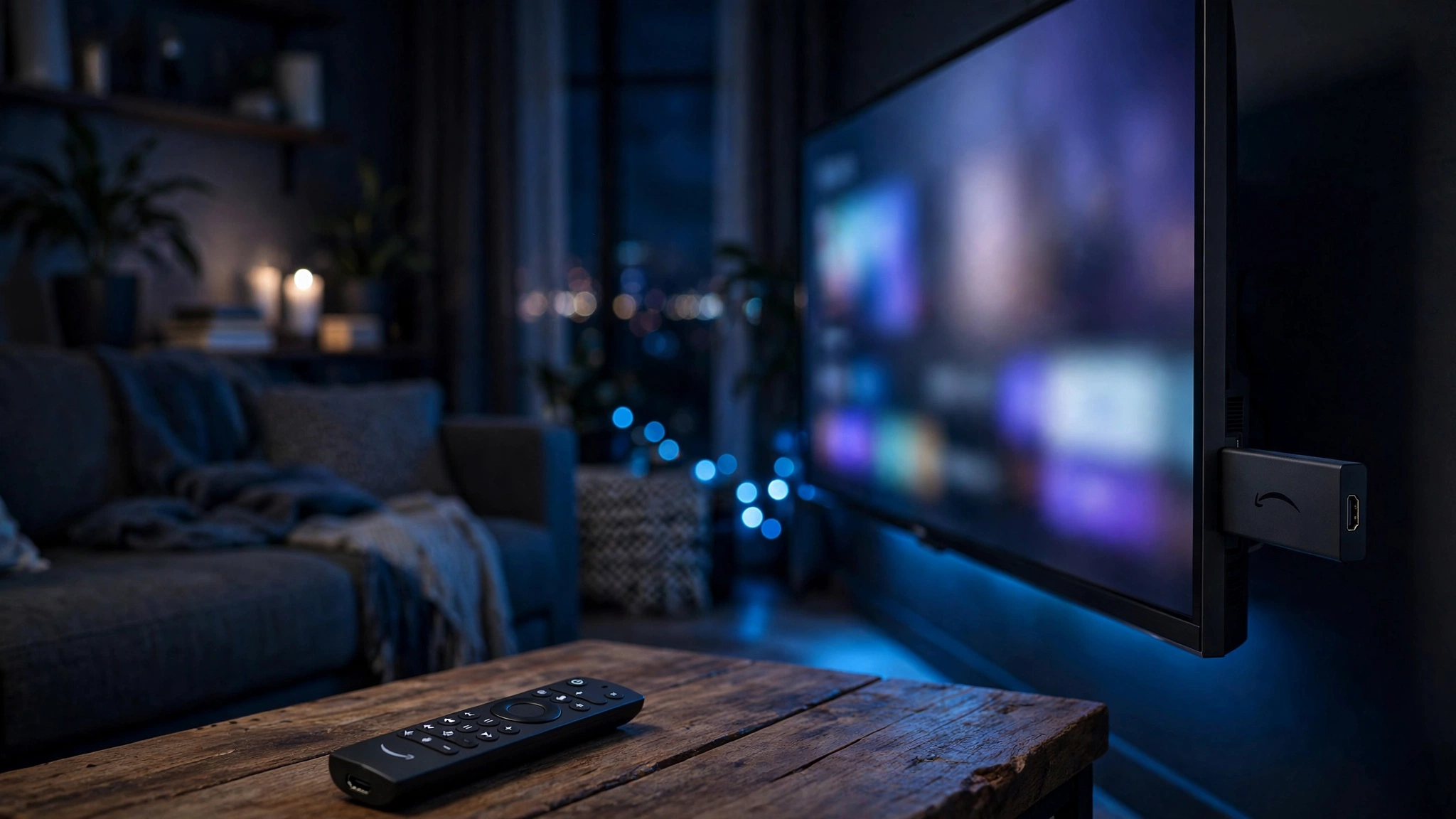
How to Set Up IPTV on Firestick: Complete Beginner’s Guide (2026)
Table of Contents
Learning how to set up IPTV on Firestick is easier than most people expect: the Amazon Fire TV Stick is the most popular device for watching IPTV in the US — it’s cheap, fast, and runs the same Android-based Fire OS that every major IPTV player app supports. The whole setup takes about 15 minutes, and you only need your Firestick, a remote, and login details from an IPTV provider you have the legal right to watch.
One clarification before we start: this guide covers players (the apps) and setup (the device). Players don’t include any channels themselves — they’re like a TV with no antenna. Your channels come from a provider’s playlist (usually an M3U link or an Xtream Codes login), and whether that’s legal depends entirely on the provider you choose. Our Is IPTV Legal? guide breaks that down in plain English — read it first if you haven’t.
Device check (2026): These steps work on Fire TV Stick models running Fire OS (Fire TV Stick, 4K, and 4K Max). Amazon’s newer Vega OS hardware — e.g., the Fire TV Stick 4K Select — cannot sideload Android apps, so if you’re buying a stick specifically for IPTV, get the 4K or 4K Max.
How to set up IPTV on Firestick: what you need first
- A Fire TV Stick or Fire TV device, set up and connected to Wi-Fi
- A stable internet connection (10 Mbps per stream is a comfortable minimum; 25+ Mbps for 4K)
- Login details from a legitimate IPTV provider — typically an M3U playlist URL or an Xtream Codes API login (username, password, and server URL)
- About 15 minutes
A note on privacy: A VPN prevents your ISP from seeing and throttling your streaming traffic. It’s strongly recommended for IPTV, regardless of player or provider. Any reputable VPN with a native Firestick app works.
Step 1 — Enable developer options safely
Fire OS hides its developer menu until you ask for it. This is an official Amazon feature — enabling it doesn’t root your device, doesn’t void your warranty, and doesn’t install anything by itself.
- From the home screen, go to Settings (the gear icon).
- Select My Fire TV (on some models it’s labeled Device & Software or Device).
- Open About.
- Highlight your device’s name and press the Select button on the remote about 7 times in a row. A countdown appears, then the message “You are now a developer.”
- Press Back once. You’ll now see a Developer options entry under My Fire TV.
Newer Fire OS builds: If your menu says “Install unknown apps” instead of a single global toggle, that’s the same setting in a newer form — you enable it per app in the next step instead.
Step 2 — Allow apps from unknown sources
- Go to Settings → My Fire TV → Developer options.
- Turn on Apps from Unknown Sources (or Install unknown apps on newer builds).
- Confirm the warning prompt. This only grants permission to install apps you choose yourself — nothing gets installed automatically.
Keep this scoped: only enable the toggle (or the per-app permission) for apps you actually install in the next step, and prefer the Appstore version of a tool whenever one exists.
Step 3 — Install a download helper from the Appstore
Since the best IPTV players aren’t in the Amazon Appstore, you’ll sideload them. The standard tool for that is Downloader, a free, legitimate app available in the official Appstore:
- From the home screen, select Find → Search and type Downloader.
- Install the app (orange icon) and open it.
- Grant it file access when asked.
Step 4 — Install a licensed IPTV player
Pick one player to start learning how to set up IPTV on Firestick. All of these are legal media players that play playlists you supply — none of them come with channels:
| Player | Best for | Cost | Notes |
|---|---|---|---|
| TiviMate | Best overall on Firestick | Free (demo); Premium ~$10/year | Best EPG and channel navigation; Premium unlocks recording, catch-up, and multiple playlists. Unlock via the TiviMate Companion app on an Android phone. |
| IPTV Smarters Pro | Beginners and multi-device users | Free | Easiest first setup; works on Firestick, phones, and PCs. Removed from Google Play — install the official APK from the developer’s site only. |
| Sparkle TV | Free challenger | Free (Plus tier available) | TiviMate-style guide and free multi-screen; younger and updated manually. |
| OTT Navigator / XCIPTV | Lightweight free options | Free | Good fallbacks if your provider’s format is unusual. |
Install the one you picked:
- Open Downloader.
- Enter the official download URL from the player’s own website (never a random “free APK” mirror — those are the #1 source of malware on Firesticks).
- Download the APK, choose Install, then Done.
- In Downloader, choose Delete to remove the installer file and free space.
Safety rule: Sideloading is only as safe as what you sideload. Download players exclusively from their official sites, and treat any site offering “free premium subscriptions” or cracked apps as hostile.
Step 5 — Add your provider’s playlist
This is where your channels arrive — the core of how to set up IPTV on Firestick. Providers give you credentials in one of two formats — pick whichever yours supplied:
Option A — Xtream Codes login (recommended, if supported):
Your provider gives you three fields: Server/Portal URL, Username, and Password.
- Open your player and choose Login with Xtream Codes API (wording varies slightly by app).
- Enter the three fields exactly as supplied. Use a name like “My Provider” for the profile.
- Let the app sync — the first load can take several minutes for large channel lists.
Option B — M3U playlist URL:
- Choose Load from M3U URL (or “Add playlist via URL”).
- Paste the playlist URL your provider gave you.
- Add an EPG URL too if your provider supplied one — that’s what gives you the TV guide grid.
After the sync finishes, browse to confirm channels load and the guide populates. If channels appear but there’s no program info, the EPG URL is missing or stale — ask your provider for a fresh one.
Step 6 — Recommended first-run settings
Five tweaks that prevent most headaches later:
- Update the EPG on startup — set the player to refresh the guide automatically (hourly or on launch).
- Pick a hardware decoder — in the player’s playback settings, choose the hardware decoder if streams stutter on software decoding.
- Enable auto frame rate matching if your player offers it — smoother motion on 50/60 fps channels.
- Organize favorites — mark the channels you actually watch; the full list can be thousands of entries.
- Set a screen saver timeout — OLED TVs benefit from this if you pause streams for long.
Troubleshooting checklist
- App won’t install: Recheck Step 2 — the toggle must be ON before you open the APK. On per-app builds, enable “Install unknown apps” specifically for Downloader.
- “No need, you are already a developer”: That message means Step 1 already succeeded. Move on to Step 2.
- Channels load but no picture: Check your internet speed at the Firestick (Settings → Network), try a wired Ethernet adapter if you’re on weak Wi-Fi, or test with a VPN to rule out ISP throttling.
- EPG empty or outdated: Confirm the EPG URL with your provider and trigger a manual refresh in the player.
- Buffering every few minutes: This one deserves its own guide — see IPTV Buffering? 12 Fixes That Actually Work (publishes next).
Still stuck? Our Contact page has a comments section, and the Write for Us page explains how reader troubleshooting tips get featured.
FAQ: How to Set Up IPTV on Firestick
Is setting up IPTV on a Firestick legal?
The setup itself — installing a player app and configuring your own playlist — is legal. Legality depends on whether you have the right to watch the content your provider supplies. See Is IPTV Legal? for the full breakdown.
Do I need to “jailbreak” my Firestick?
No. Everything in this how to set up IPTV on Firestick guide uses official Fire OS features. “Jailbreaking” is just a slang term for sideloading — nothing is modified or rooted.
Which Firestick is best for IPTV in 2026?
The Fire TV Stick 4K or 4K Max (both run Fire OS and sideload normally). Avoid Vega OS models like the 4K Select if you want to install IPTV players.
Can I use the same provider login on multiple devices?
Yes — an M3U or Xtream Codes login works in any compatible player — but you’re limited by your plan’s simultaneous-connection count. Installing TiviMate on your Firestick and Smarters on your phone with the same login works fine as long as you’re within your connection limit.
Why isn’t TiviMate in the Amazon Appstore?
Amazon doesn’t carry it. Sideloading the official
APK (via the developer’s site) is the supported way to install it.
That’s how to set up IPTV on Firestick from start to finish: enable developer options, sideload a trusted player, add your provider’s playlist, and dial in the first-run settings. The whole process takes about 15 minutes — and once it’s done, your Firestick doubles as a full live-TV hub.



6 Comments