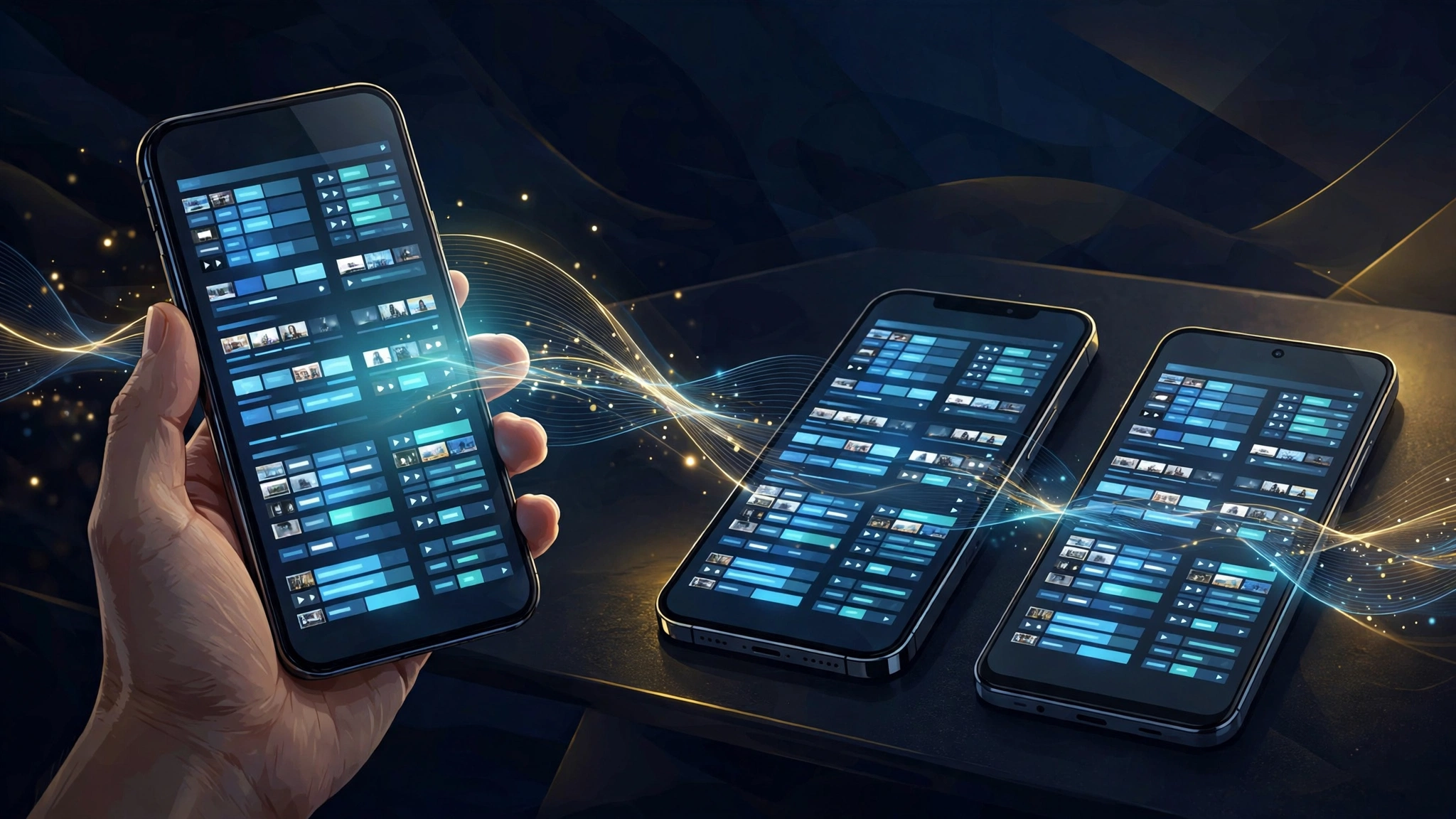
How to Watch IPTV on Your Phone (iPhone & Android) — 2026 Guide
Wondering how to watch IPTV on phone? It’s entirely possible — and often easier than setting it up on a TV box. Your phone doesn’t ship with a built-in IPTV tuner, but all you need is a player app from the official App Store or Google Play, plus the playlist credentials from your licensed IPTV subscription. Install the app, enter your playlist, and your live channels and program guide appear right on your phone.
This guide covers the whole process for both platforms: the best mobile IPTV apps for iPhone and Android, step-by-step setup for M3U playlists and Xtream Codes logins, tips for keeping mobile data use under control, and how to send the stream to your TV when you get home.
What you’ll need: an active subscription from a licensed IPTV provider (the player app itself carries no channels — it’s just an empty shell you point at your playlist), and a reasonably recent phone running iOS or Android. Not sure what a player actually does? Read our IPTV player explainer.
Table of Contents
Can you watch IPTV on a phone?
Yes. Phones are some of the most capable IPTV devices you own: they have fast processors, sharp high-resolution screens, and both Wi-Fi and cellular radios. The only thing missing is the software to decode an IPTV playlist — which is exactly what an IPTV player app provides.
There are two things to understand before you start:
- The app provides no channels. Every legitimate IPTV app is an empty player. You bring your own licensed subscription — usually delivered as an M3U playlist URL or as Xtream Codes API login details (server URL, username, password). If an app promises “free channels” built in, treat that as a red flag.
- iPhone and Android differ in app choice. The App Store is stricter about IPTV-style apps, so iPhone options are fewer and mostly paid. Google Play is more permissive, so Android has the widest selection of free and premium players. Both platforms have at least one excellent free option.
Best IPTV apps for iPhone
iPhone users have a smaller — but solid — selection of IPTV player apps. Here are the ones worth your time.
IPTVX
IPTVX is currently the most polished IPTV player built specifically for iPhone and iPad. It supports M3U playlists and Xtream Codes logins, loads a full program guide, and its interface is designed around touch and the iPhone’s screen sizes. It is a paid app, which is part of why it has survived on the App Store while many free IPTV players have disappeared. If you want the closest thing to a premium cable box experience on iOS, this is it.
VLC for Mobile (VLC for iOS)
VLC is the free, open-source media player everyone knows, and its iOS version handles M3U playlists just fine. You paste your playlist URL into the app and channels load as a browsable list. You won’t get a glossy TV-guide interface — it’s closer to a file list — but it costs nothing, shows no ads, and is rock-solid for playback. It also doubles as your video player for anything else, so it’s worth having anyway.
nPlayer / OPlayer-style players
There are a handful of capable third-party media players on the App Store that accept M3U and playlist formats among their many supported inputs. Their quality varies and they update often, so check the current ratings before installing. As a rule, prefer apps that are explicit about being players — you supply the playlist — over anything advertising channels of its own.
Best IPTV apps for Android phones
Android is the strongest platform for mobile IPTV: you get the best apps, many of them free or nearly free.
TiviMate (Premium for phones)
TiviMate is the gold standard of IPTV players on Android — the same app many people run on their Android TV boxes. On a phone it delivers the full experience: channel groups, a visual program guide, favorites, catch-up where your provider supports it, and per-channel settings. A free trial covers the basics, and the premium unlock (a small one-time or yearly payment through Google Play) opens everything else. If you take IPTV on your phone seriously, this is the one to buy.
IPTV Smarters Pro
IPTV Smarters Pro is a popular free player (with a paid unlock for advanced features) that accepts both M3U playlists and Xtream Codes API logins. Its phone interface is clean, it supports multiple playlists/profiles, EPG, and parental controls. Because it’s also available on Android TV, learning one app covers two devices. For a detailed walkthrough, see our IPTV Smarters Pro setup guide.
VLC for Android
Same story as on iOS: free, open source, no ads, plays M3U playlists without fuss. On Android, VLC is a perfectly good everyday IPTV player if you don’t need a fancy guide interface — and a great fallback if a premium app ever misbehaves.
How to watch IPTV on phone: step-by-step setup
The exact taps differ per app, but the process is the same everywhere. Here’s the universal walkthrough using an M3U playlist; the Xtream Codes variation follows below.
Step 1: Get your playlist details from your provider
A licensed IPTV subscription typically delivers your credentials in one or two formats:
- M3U playlist URL — a single long web link ending in .m3u. Paste it anywhere your app asks for a playlist or “remote playlist.”
- Xtream Codes API — three pieces: a server URL, a username, and a password. Many apps have a dedicated “Login with Xtream Codes API” option.
Keep these in a password manager or your phone’s notes app — you’ll need them again if you switch apps. Never share them publicly, and never buy “free playlist” links from strangers: those are almost always unauthorized streams.
Step 2: Install your player app
Download your chosen player from the official App Store (iPhone) or Google Play (Android). Avoid side-loaded APKs from random websites — on a phone that holds your banking apps, email, and photos, installing software from untrusted sources is a risk you don’t need to take.
Step 3: Add your playlist or log in
Open the app and look for one of these options:
- Add Playlist / M3U URL — paste the M3U link your provider sent.
- Xtream Codes API login — enter the server URL, username, and password.
Give the playlist a name you’ll recognize (e.g., your provider’s name), then confirm. The app will fetch your channels — this can take a minute or two on large channel lists.
Step 4: Load the program guide (EPG)
Most apps fetch your provider’s EPG automatically once the playlist is added. If the guide looks empty, check the app’s settings for a “TV Guide” or “EPG” section and trigger a manual refresh. A working guide transforms the experience from a bare channel list into something that feels like real television. New to program guides? Start with our EPG beginner’s guide.
Step 5: Organize your channels
Open the channel list, hide the categories you never watch, and star your favorites. Ten minutes of organizing now saves you from scrolling past thousands of channels every evening. Most apps also let you reorder or rename groups — do it once and it sticks.
Step 6: Tune the playback settings
Before your first movie night, open the app’s player settings. Two worth checking:
- Hardware decoding — leave it on; it uses your phone’s chip instead of the CPU and drains far less battery.
- Stream format — if your provider offers multiple quality tiers, pick one that matches your connection (more on data below).
How to watch IPTV on iPhone: the short version
Because iOS apps and setup details trip people up most often, here’s the iPhone path condensed:
- Install IPTVX (paid, best experience) or VLC for iOS (free, no-frills) from the App Store.
- In IPTVX, add your provider’s Xtream Codes API credentials or M3U URL — it’s designed for exactly this.
- In VLC, use the network-stream option to open your M3U URL directly.
- Let the EPG load, mark favorites, and you’re done.
iPhone caveat worth knowing: IPTV apps come and go from the App Store more often than on Android. If your usual app disappears, don’t panic — your playlist and credentials are yours, and they work in any player. Just install a replacement and re-enter them.
How to watch IPTV on Android phone: the short version
- Install TiviMate from Google Play (free trial; premium unlock for the full feature set) or IPTV Smarters Pro (free with optional upgrades).
- On first launch, add your playlist — TiviMate takes M3U URLs and Xtream logins; Smarters walks you through both with on-screen prompts.
- Let channels and the EPG sync, then organize favorites and hide unused groups.
- Check player settings: hardware decoding on, and choose a stream quality that fits your data plan.
Android bonus: because many Android TV apps are the same apps as on your phone (TiviMate included), your settings and playlists can feel familiar across devices — and some providers let you use the same subscription on both.
Managing mobile data while watching IPTV
This is the one thing that surprises phone users learning how to watch IPTV on phone: streaming live TV over cellular data eats through a data allowance fast. An HD stream can consume several gigabytes per hour, so a couple of evenings of mobile viewing can exhaust a modest plan.
Practical ways to stay in control:
- Use Wi-Fi whenever you can. Set your app to stream full quality on Wi-Fi and a lower quality on mobile data — several players offer per-network quality settings.
- Lower the stream quality on cellular. Dropping from full HD to standard definition cuts data use dramatically and still looks fine on a phone screen.
- Download for offline viewing where supported. If your provider includes catch-up or video-on-demand, you can queue it on Wi-Fi first.
- Watch your provider’s multi-connection rules. Some subscriptions limit how many devices can stream at once; your phone counts as one. Check your plan before running the phone and the living-room TV simultaneously.
Casting IPTV from your phone to your TV
Half the point of a phone setup is portability — but when you’re home, you can throw the stream onto the big screen:
- Android to Chromecast: many Android IPTV apps include a cast button. Tap it, pick your Chromecast or Google TV device, and the stream plays on the TV while your phone becomes a remote.
- iPhone to Apple TV: use AirPlay screen mirroring or look for in-app AirPlay support. AirPlay mirroring works with nearly any player app, including VLC.
- Wired option: a USB-C/Lightning-to-HDMI adapter mirrors your phone to any TV with zero lag — handy where Wi-Fi is weak.
Once you’ve tasted casting, you may want a dedicated setup for the living room anyway — see our Firestick setup guide and Smart TV setup guide.
Troubleshooting IPTV on a phone
Most phone-specific problems have phone-specific causes. Quick fixes for the common ones:
| Problem | Likely cause | Fix |
|---|---|---|
| Channels won’t load on mobile data but work on Wi-Fi | Carrier throttling or blocked ports | Try a VPN, or switch the app’s stream protocol if offered |
| Video stutters only on the phone | Software decoding or weak signal | Enable hardware decoding; move closer to the router; drop to SD on cellular |
| App crashes when opening the guide | EPG file too large for the app | Disable EPG auto-refresh or use a shorter EPG timespan in settings |
| “Invalid playlist” error | Expired link or typo | Re-copy the M3U URL from your provider; check for trailing spaces |
| Login fails with Xtream details | Wrong server URL or expired subscription | Confirm the server URL (http vs https matters); check your subscription status with your provider |
| Battery drains fast while watching | Software decoding plus bright screen | Turn on hardware decoding; lower screen brightness; plug in for long sessions |
For the deeper, device-agnostic fixes — buffering, freezing, and provider-side issues — see our IPTV not working guide and buffering fix guide.
Is it legal to watch IPTV on your phone?
The phone changes nothing about the legality question — the same rules apply as on any other device. Watching streams from a licensed provider you pay for is fine. Watching unauthorized streams is not, regardless of screen size. The player apps discussed here are all legal software; legality hinges entirely on the subscription you feed them. Our Is IPTV Legal guide goes deeper.
One phone-specific caution: because mobile IPTV is popular, it’s also a favorite disguise for shady “free IPTV” apps stuffed with ads or worse. Stick to well-known players from the official app stores, bring your own licensed subscription, and you’ll stay on solid ground.
Frequently asked questions
Do I need a VPN to watch IPTV on my phone?
Not always, but it’s one of the more useful upgrades for mobile viewing. A VPN can bypass carrier throttling and keeps your viewing private on public Wi-Fi. See our VPN for IPTV guide for the full breakdown.
Can I watch IPTV on my phone for free?
The player apps can be free (VLC costs nothing), but the channels come from a paid, licensed subscription. Anyone offering you a “free” full channel lineup is selling unauthorized streams — steer clear.
How much data does IPTV use on a phone?
It depends on stream quality: standard definition uses the least, full HD the most — an HD stream can run through several gigabytes per hour. Use Wi-Fi for long sessions and drop the quality on cellular.
Can I use the same IPTV subscription on my phone and TV?
Usually yes, as long as your provider allows multiple simultaneous connections. Many plans include two or more; check yours before streaming on both at once.
Why did my IPTV app disappear from the App Store?
Apple periodically removes IPTV-style apps, especially on iOS. Your subscription is unaffected — install a different player from the App Store and enter the same playlist credentials.
The bottom line
Learning how to watch IPTV on phone comes down to three moves: pick a reputable player app for your platform, enter your licensed provider’s playlist or Xtream login, and mind your mobile data. iPhone users get the smoothest ride with IPTVX (or VLC for free); Android users get the best-in-class TiviMate. Either way, your subscription travels with you — once you know how to watch IPTV on your phone, the phone just becomes the most portable TV you own.




One Comment