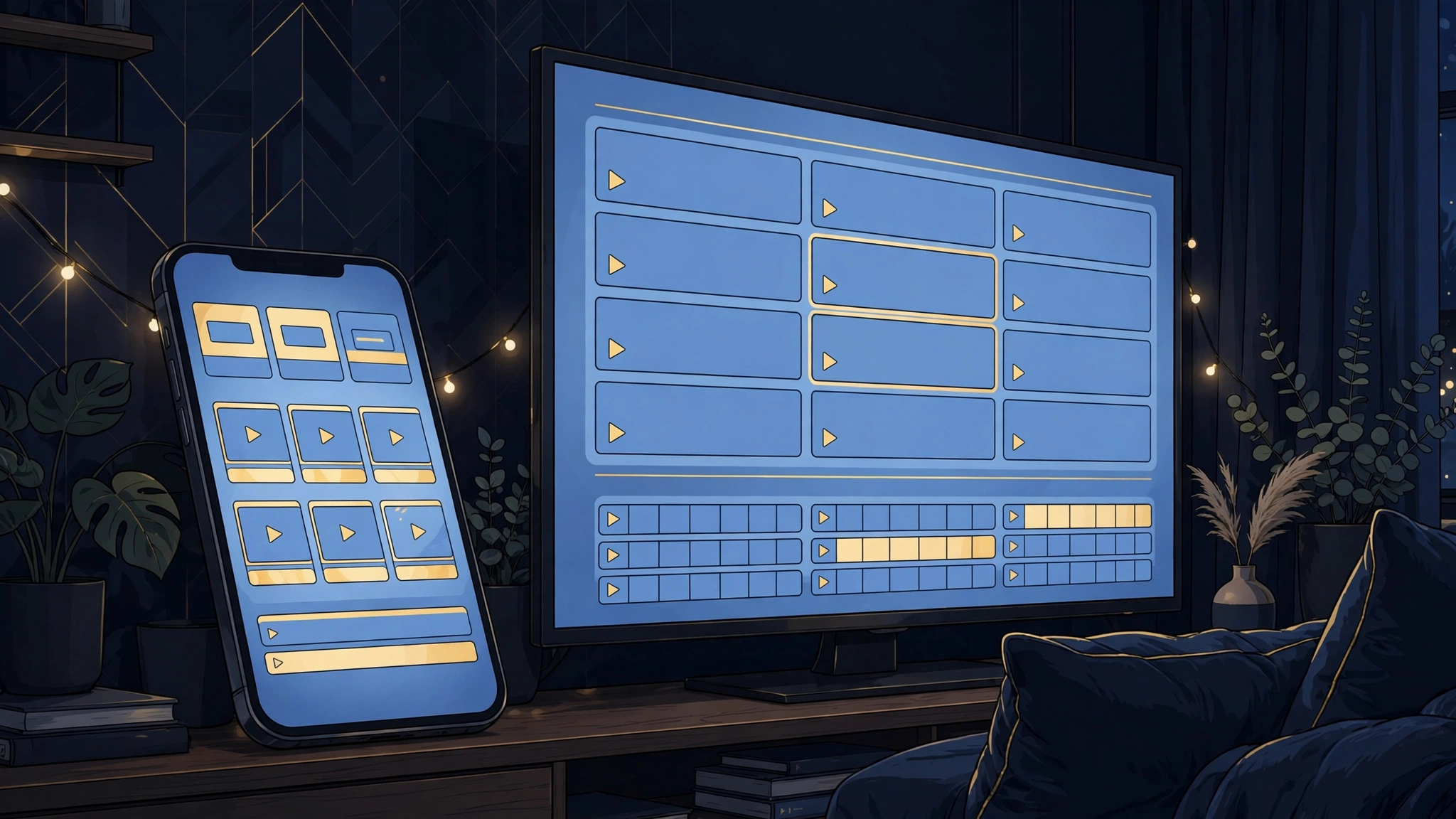
What Is an IPTV Player? (And Do You Need One?)
If you are new to IPTV, the terminology can feel like alphabet soup: providers, players, playlists, M3U links, Xtream logins. The single most confusing pair is the IPTV player and the IPTV provider — and mixing them up is how beginners end up paying for the wrong thing. This guide clears it up in plain English.
What is an IPTV app?
An IPTV app — more precisely called an IPTV player — is a piece of software that plays television streams delivered over the internet. Think of it as the media player, not the content: it gives you the channel grid, the program guide, the video-on-demand library, and the playback controls, but it ships with zero channels included. You bring your own subscription (usually as a playlist link or login), and the player turns that subscription into something watchable.
In short: the provider supplies the streams; the player supplies the interface. You need one of each.
IPTV player vs provider: what is the difference?
The difference between an IPTV player and an IPTV provider is simple once you see it: the provider is the service you subscribe to that hosts the actual channels and streams, while the player is the app on your device that logs into that service and displays everything nicely. One sells access to content; the other is the window you watch it through.
A handy analogy: Netflix is both the provider and the player in one package — the app and the content come together. IPTV splits those roles. Your provider hands you login credentials or a playlist URL, and you paste those into whichever player app you like. That split is actually an advantage: if you ever dislike your player, you switch apps without changing subscriptions, and vice versa.
This matters at checkout, too. A legitimate player app may charge a one-time fee or a small subscription for the software itself (premium features, multiple playlists, an ad-free interface), but that fee never buys you channels. If an app promises “10,000 channels included” with no separate provider involved, treat the claim with skepticism — players don’t include content by definition. Our Is IPTV Legal guide explains why the source of your streams matters.
Why do you need both a player and a subscription?
You need both because neither half works alone. A subscription without a player is just a playlist file or a set of login credentials sitting on your phone — there is nothing to press play in. A player without a subscription is a beautifully empty app: it will open, show you its menus, and then ask you to add a playlist because it has nothing to play.
The two halves meet at the login screen. When you first open a player, it asks how you want to connect: paste an M3U playlist URL, enter Xtream Codes API credentials (a server URL plus username and password), or sometimes log in with an existing provider account. Once connected, the player downloads your channel list, the program guide, and any video-on-demand catalog your subscription includes, then presents them in its interface.
How does an IPTV player work?
Under the hood, an IPTV player is doing three jobs: fetching, organizing, and playing.
- Fetching. The player pulls your channel list from whatever you gave it — an M3U playlist file, an Xtream Codes login, or a provider portal. It also fetches the EPG (electronic program guide) data so the guide grid fills in with what’s on now and next. If you want the full picture of that listings layer, see our EPG explainer.
- Organizing. Raw playlists are ugly: thousands of channels in one flat list with cryptic names. The player sorts them into categories (sports, news, movies, kids), lets you build favorites, hides channels you never watch, and remembers where you left off in a movie.
- Playing. When you select a channel, the player hands the stream to your device’s video engine. Better players add practical touches: catch-up TV, recording, timeshifting (pause live TV), multiple audio tracks and subtitles, and parental controls.
Nothing about this requires technical skill from you — the player handles the plumbing. Your job is just to pick a good one and enter your credentials correctly.
What are M3U playlists and Xtream logins?
These are the two common ways a subscription connects to a player, and you will see both terms everywhere:
- M3U playlist: a text file (or a URL pointing to one) listing every channel your subscription includes, with the stream addresses. You paste the URL into the player once; the player does the rest. Playlists are portable — the same URL usually works in several different players.
- Xtream Codes API login: a server URL plus a username and password. Instead of a static file, the player talks to the provider’s server directly, which usually means faster channel loading, automatic EPG, and VOD categories that stay in sync. Most modern players support this method, and most providers offer it.
Neither method is inherently better for every setup — but if your provider offers Xtream login, use it. It tends to be the smoother experience.
Do you need an IPTV player, or will a provider’s own app do?
Some legitimate providers ship their own branded apps, and if yours does — and you like it — you don’t strictly need a third-party player. The provider’s app is pre-configured for their service, so setup is near zero.
That said, many viewers still install a separate player, for a few practical reasons. Third-party players often have better interfaces: richer EPG layouts, proper favorites management, recording and timeshift, and support for multiple playlists in one app (handy if a household uses more than one subscription). They also let you keep your setup when you change providers — same app, new login, everything familiar.
The short answer to “is there an app for IPTV”: yes, dozens. The better question is which one fits your device and habits, which our best IPTV players roundup answers in detail.
Are IPTV players legal?
IPTV players themselves are just software — media players with playlist support — and using one is not inherently illegal anywhere. Legality hinges on the streams you load into the player, i.e., your provider. A player loaded with a properly licensed service is no different from any other streaming app on your device.
This is precisely why the player/provider distinction matters: nobody can judge an IPTV setup by the app icon on your home screen. Stick to legitimate, licensed providers, keep your subscriptions above board, and the player is simply your remote control. For the fuller picture, read Is IPTV Legal?.
What to look for in an IPTV player
Not all players are equal. When you are comparing options, check for these features — they separate the genuinely useful apps from the bare-bones ones:
- Solid EPG support. A proper guide grid with now/next information, not just a channel list. This is the feature you will use every single day.
- Favorites and groups. The ability to star channels, create custom groups, and hide the hundreds of channels you will never open.
- VOD and catch-up. If your subscription includes movies, series, or catch-up TV, the player should present them as browsable libraries, not raw lists.
- Multiple playlists. Support for more than one subscription or playlist in a single app, with easy switching.
- Recording and timeshift. Pause live TV, schedule recordings — genuinely useful, though availability varies by device and app.
- Platform coverage. Make sure the player actually runs well on your device (Firestick, Android TV, Smart TV, phone, PC) before you pay for a premium version.
- Regular updates. An app that hasn’t been updated in years is a red flag — streaming protocols and device software move on.
Price matters less than you’d think: several excellent players are free or charge a small one-time unlock fee. Never pay a recurring “subscription” to a player that promises channels as part of the deal — that is not how players work.
Popular IPTV players worth knowing
You don’t need a long list — a handful of well-established players cover nearly every device. Here is the short version:
- TiviMate (Android TV / Firestick): widely regarded as the gold standard for Android-based devices, with a superb EPG layout and deep customization. Free version available; premium unlocks the full feature set.
- IPTV Smarters Pro (multi-platform): one of the most widely used players, available on Firestick, Android, iOS, Smart TVs, and more. Simple login flow, solid VOD presentation. Our IPTV Smarters Pro setup guide walks through installation.
- Flix IPTV (Smart TV focus): popular on Samsung and LG smart TVs, where sideloading Android apps isn’t an option. Clean interface, one-time activation fee.
- Sparkle TV / XCIPTV (Android): capable alternatives with modern interfaces and good Xtream Codes support.
Head-to-head detail lives in our TiviMate vs IPTV Smarters Pro comparison and the broader best players roundup.
How to get started with an IPTV player
Getting from zero to watching takes about ten minutes:
- Pick a player that runs on your device (see the list above or the full roundup).
- Install it from your device’s app store — or sideload it on Firestick/Android TV if it isn’t listed. Device-specific walkthroughs: Firestick setup, Smart TV setup.
- Get your subscription details from your provider: an M3U playlist URL or Xtream Codes login (server URL, username, password).
- Enter them in the player on first launch — choose the matching login method, paste carefully (URLs are case-sensitive), and let the player sync.
- Wait for the EPG to load, then organize: set favorites, hide unwanted categories, and you’re done.
If channels load but the guide is empty, the EPG source needs attention — the EPG guide covers enabling and fixing it.
Common beginner mistakes
- Paying a “player” for channels. A player fee buys software, never content. If channels are promised, you’re looking at a provider wearing a player’s clothes — verify what you’re actually buying.
- Installing five players at once. Pick one good player per device and learn it. Juggling apps just multiplies confusion.
- Typing the playlist URL by hand. One wrong character breaks everything. Copy-paste from your provider’s email or customer portal, or use your phone to avoid TV-keyboard typos.
- Ignoring the EPG. An empty guide makes every player feel broken. Spend the two minutes to enable it.
- Forgetting which login goes where. Provider credentials go into the player; player premium unlocks (if any) are separate purchases. Keep them straight and you’ll never lock yourself out.
Frequently asked questions
Does an IPTV player come with channels?
No. An IPTV player is only the playback software — it contains no channels, movies, or streams of its own. You supply the content by connecting a subscription (playlist URL or login) from a provider. Any “player” advertising built-in channels is misrepresenting what it is.
Is there an app for IPTV on Firestick / Smart TV / iPhone?
Yes — most established players cover the major platforms. TiviMate and IPTV Smarters Pro lead on Firestick and Android TV; Flix IPTV and Smart IPTV are popular on Samsung/LG smart TVs; IPTV Smarters Pro also runs on iOS. Check the players roundup for the current per-device picks.
What’s the difference between an IPTV player and an IPTV box?
A player is software; a box is hardware. An IPTV box (like a Firestick, Android TV box, or MAG-style device) is the physical device connected to your TV — and you install a player app on that box. One is the television set-top hardware, the other is the app running on it.
Do I need a VPN to use an IPTV player?
A VPN isn’t required for the player software itself to function. Whether one makes sense for your streaming setup depends on your provider, your ISP, and your privacy preferences — our VPN for IPTV guide gives the honest answer.
The bottom line
An IPTV player is the app that turns your subscription into a watchable TV experience: the guide, the channel organization, the playback controls. The provider brings the streams; the player brings the interface. Understand that split and every other IPTV concept — playlists, EPG, logins, “free player” offers — falls into place.
Start with one solid player on your main device, connect your subscription, enable the EPG, and set up your favorites. Then, when you’re ready to compare options properly, our best IPTV players of 2026 roundup has you covered.



11 Comments