How to Get IPTV on Roku (2026 Workarounds)
If you’re wondering how to get IPTV on Roku, here is the honest answer up front: you cannot install IPTV player apps like IPTV Smarters Pro or TiviMate directly on a Roku. They are not in the Roku Channel Store, and Roku’s closed operating system gives you no way to add them. But that doesn’t mean your Roku is useless for IPTV — you just need a workaround. The three that actually work are screen mirroring from a phone or PC, AirPlay from an iPhone or iPad, and Plex for media playback, plus licensed live-TV apps as a legal alternative.
This guide to how to get IPTV on Roku walks through each method step by step, debunks the outdated “private channel code” tricks still floating around old blogs, and tells you plainly when a different device (like a Firestick) would save you the hassle.
Table of Contents
Why there’s no IPTV player on Roku
The reason you can’t just install IPTV on Roku the way you would on a Firestick comes down to how Roku runs its platform:
- The Channel Store is the only app source. Roku devices only install channels from Roku’s official Channel Store. There is no “unknown sources” toggle like on Android TV, so you can’t grab an app from a website and install it.
- The big IPTV players never made Roku versions. IPTV Smarters Pro, TiviMate, and similar players are built for Android, iOS, Windows, and macOS. No Roku OS build exists, and none of them are listed in the Channel Store.
- Roku OS is not Android. Guides that tell you to “download the IPTV Smarters APK on Roku” are nonsense — Roku devices can’t run Android APK files at all. Any site promising a direct install is either outdated or trying to get you to download something you shouldn’t trust.
Our IPTV players roundup covers where these apps do run well — Roku just isn’t on that list.
What does NOT work (and the scams to avoid)
If you’re researching how to get IPTV on Roku, you’ll run into these dead ends first — a quick warning about the methods that don’t work, because old blog posts and YouTube videos still push them:
Roku private channel codes are dead
For years, people installed unofficial Roku channels with “private channel codes” typed into their Roku account. Roku killed that system on February 23, 2022, removing all non-certified channels from the platform (replacing them with a developer-only beta feature capped at 20 users). Any guide still telling you to enter an “iptvsmarters” code is years out of date, and any “working 2026 private channel code” list is a scam. Cord Cutters News covered the shutdown in detail.
“Developer mode” IPTV packages
You may see tutorials claiming you can enable Roku’s developer mode and sideload an IPTV channel. Developer mode is officially meant for channel development and testing, and Roku can change or restrict it in system updates. Files passed around on forums as ready-made IPTV channels are unsigned packages from strangers — installing one means running unvetted code on your home network. Don’t.
Websites selling “Roku IPTV installer” downloads
While figuring out how to get IPTV on Roku, remember this: Roku devices have no file manager, no browser-based installer, and no APK support. Any site offering a downloadable “Roku IPTV installer” is selling you nothing — or worse, malware. Walk away.
The bottom line on how to get IPTV on Roku safely: it never involves a secret code or a mystery download — it involves your phone, your PC, or the official Channel Store. If a method doesn’t go through one of those three, treat it as a red flag.
Method 1: Screen mirroring from Android or Windows (the easiest way to get IPTV on Roku)
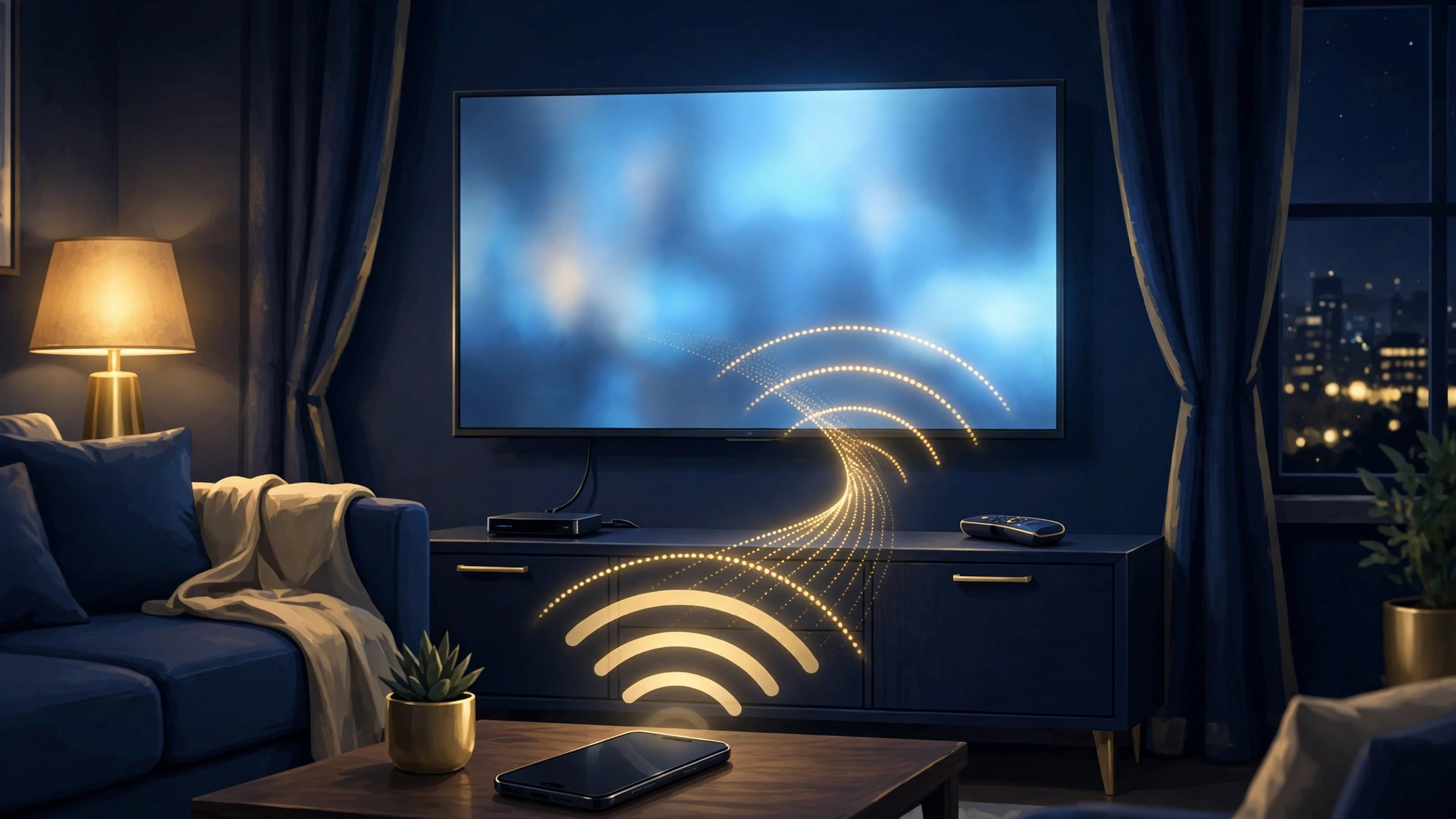
Screen mirroring is the most reliable way to get IPTV on Roku, and it works with any IPTV player app you can run on your phone or PC. You run the player on the second device and beam the picture to the TV. Setup takes about five minutes.
What you need: a Roku device with screen mirroring enabled, and an Android phone/tablet or Windows PC on the same Wi-Fi network.
Step 1: Enable screen mirroring on your Roku
- On your Roku, go to Settings > System > Screen mirroring.
- Set screen mirroring mode to Prompt (safest) or Always allow.
- Leave the Roku on the home screen or the screen-mirroring standby screen.
Step 2: Connect your phone or PC
From Android: open Settings > Connected devices > Cast (wording varies by brand), tap your Roku device, and accept the prompt on the TV. Samsung owners can use the Smart View quick-settings tile.
From Windows: press Win + K to open the Cast panel, select your Roku, and connect. Your whole desktop — or just the player window — appears on the TV.
Step 3: Open your IPTV player and watch
Install a proper player like IPTV Smarters Pro or TiviMate on the device doing the mirroring, sign in with your provider’s playlist details, and start a channel. The video plays on the big screen. Our IPTV Smarters Pro setup guide walks through the player side of this if you’ve never configured one.
Pros: works with any player app, free, no extra hardware. Cons: your phone or PC is tied up while you watch, and the picture quality depends on your Wi-Fi — a weak signal means lag or stutter. For best results, keep both devices on the same 5 GHz Wi-Fi band and close to the router.
Method 2: AirPlay from iPhone, iPad, or Mac
If you’re in the Apple ecosystem and wondering how to get IPTV on Roku, AirPlay is the cleaner version of the same idea — and many newer Roku devices and Roku TVs support Apple AirPlay 2 natively. (Support varies by model and region, so check Roku’s official device support page if you’re unsure.)
How to AirPlay IPTV to Roku
- Make sure your iPhone/iPad and Roku are on the same Wi-Fi network.
- On the Roku, go to Settings > Apple AirPlay and HomeKit and confirm AirPlay is turned on.
- Open your IPTV player app on the iPhone or iPad and start playing a channel.
- Open Control Center, tap Screen Mirroring, and choose your Roku.
- The stream appears on your TV. For the smoothest result, lock your phone’s orientation to landscape first.
AirPlay is native to both Apple devices and supported Roku models, which makes the connection step simple. The same caveat applies, though: the phone is occupied while you watch.
Method 3: Plex on Roku (for your own media library)
Plex has an official channel in the Roku Channel Store, and it’s an excellent media app — but let’s be clear about what it does: Plex plays media from your own server or files. It is not an IPTV player and won’t log in to an IPTV provider’s playlist.
Why mention Plex in a guide about how to get IPTV on Roku? Because some Roku owners confuse the two, and because Plex fills a related gap: if you have your own recorded shows, movies, or a home media server, Plex gives you a polished Roku-native way to watch them on the TV — no mirroring required. Install the Plex channel from the Channel Store, point it at your media, and you’re done.
Don’t go down the rabbit hole of third-party Plex plugins promising IPTV inside Roku. Unofficial plugins are unmaintained, frequently broken, and many violate the terms of the services they touch. If your goal is live IPTV channels, mirroring (Methods 1–2) is the honest path.
Method 4: Licensed live-TV apps (the no-workaround option)
If your answer to how to get IPTV on Roku is simply “live TV channels on my Roku,” the official Channel Store already has you covered with licensed services — no workarounds needed:
- Subscription live TV: Sling TV, Hulu + Live TV, YouTube TV, fuboTV, Philo — real channel lineups, official apps, full Roku support.
- Free with ads: Pluto TV, Tubi, The Roku Channel itself, and Plex’s free live-TV section — hundreds of linear channels at zero cost.
These aren’t IPTV in the playlist sense, but they’re legal, reliable, and designed for the Roku from the ground up. For many households they’re genuinely the better answer — especially if the appeal of IPTV was the price of cable rather than a specific provider’s channel list. If you’re weighing what’s legal and what isn’t, our is IPTV legal guide explains where the lines are.
Do you need a VPN for IPTV on Roku?
Roku devices have no VPN apps in the Channel Store and no system-level VPN setting, so you can’t run a VPN directly on the Roku. If you want VPN protection while sorting out how to get IPTV on Roku, your options are:
- Run the VPN on your router — this covers every device on your network, including the Roku. It’s the most thorough option but requires a VPN-compatible router and some configuration.
- Run the VPN on the device you’re mirroring from — if you cast IPTV from a phone or PC (Methods 1–2), installing the VPN there protects the actual stream. This is the simplest approach.
We dug into the full reasoning in Do You Need a VPN for IPTV? — worth a read before you spend money on a subscription.
Troubleshooting: when mirroring misbehaves
When IPTV on Roku misbehaves, it’s usually a mirroring problem rather than an IPTV problem. Here’s the quick diagnostic order:
- Roku doesn’t appear in the cast list — confirm both devices are on the same Wi-Fi network (not one on 5 GHz and one on guest Wi-Fi). Restart both devices.
- Screen mirroring option missing on Roku — go to Settings > System > Screen mirroring and make sure it’s enabled. Some very old Roku models don’t support it.
- Video stutters or lags — move closer to the router, switch to 5 GHz Wi-Fi, and close other bandwidth-heavy apps. Mirroring re-encodes video in real time, so a weak signal shows up fast.
- No sound on the TV — on the mirroring device, check that media volume (not just ringtone volume) is turned up, and that the Roku’s volume isn’t muted.
- Player works on the phone but not through mirroring — a few apps block screen capture for DRM reasons. Try a different player app (TiviMate and IPTV Smarters both generally mirror fine).
If the underlying stream itself is the problem — freezing, channels not loading — that’s a provider or network issue, and our IPTV not working and buffering fix guides cover those.
Should you just get a Firestick instead?
Honest take for anyone wondering how to get IPTV on Roku: Roku will always be the compromise platform for IPTV. Mirroring works, but it ties up a second device and adds a failure point to every viewing session. If IPTV is something you watch daily — not occasionally — a device with native player apps will give you a noticeably better experience.
The Amazon Firestick is the natural alternative: IPTV Smarters Pro and TiviMate both run natively on Fire OS, and setup takes minutes (see our Firestick IPTV setup guide). Android TV and Google TV boxes are in the same category. A basic Firestick costs little more than a Roku Express, so if you’re buying a device for IPTV, buy the one built for the job. If you already own a Roku and just want to get IPTV on Roku occasionally, the mirroring methods above get you there for free.
Frequently asked questions
Does IPTV work on Roku TV?
Yes — when it comes to how to get IPTV on Roku, a Roku TV behaves exactly like a Roku streaming stick. Screen mirroring and AirPlay work on Roku TVs the same way, and the licensed live-TV apps install from the same Channel Store. There is no Roku TV model with a native IPTV player app.
Can I install IPTV Smarters on Roku?
No. IPTV Smarters Pro is not in the Roku Channel Store, Roku OS can’t run Android APKs, and private channel codes were discontinued in 2022. The only way to get IPTV on Roku through Smarters is to run the app on a phone or PC and mirror it to the TV.
Do Roku private channel codes still work?
No. Roku permanently removed non-certified (private) channels on February 23, 2022. Codes shared in old guides no longer do anything. Roku’s replacement — a developer beta feature limited to 20 users — is for app testing, not watching TV.
Can you jailbreak a Roku for IPTV?
There is no practical “jailbreak” for Roku comparable to Firestick sideloading. Roku’s firmware is locked down by design, and the platform removed its unofficial-channel pathway years ago. Anyone selling a “jailbroken Roku for IPTV” is selling you either a regular Roku or a scam.
Is watching IPTV on Roku legal?
The device doesn’t change the legality — what matters is the source of the streams. Watching properly licensed content through the Channel Store’s official apps is unambiguously fine. For IPTV playlists, legality depends on whether your provider is licensed to distribute the content, which varies by country and provider. See our full is IPTV legal breakdown.
The bottom line
So how to get IPTV on Roku in 2026? Accept one compromise — no native player apps, ever — and then mirror from a device you already own. With screen mirroring or AirPlay, you can watch your full IPTV lineup on the big screen tonight — no new hardware, no shady downloads. Start with mirroring, keep your Wi-Fi strong, stick to legitimate providers and players, and you’ll get a perfectly watchable setup. And if you find yourself mirroring every single evening, take it as a sign: a Firestick or Android TV box will make your life easier.